Sharing a file from the cloud takes seconds. Controlling what happens after you send the link is more complicated.
One service may let anyone with the URL download a file immediately. Another can restrict access to named recipients, require authentication, prevent downloads, expire the link automatically, or record who opened it. Some platforms are designed for teams working together in shared folders, while others are better when a client simply needs to receive a large file once.
Those differences matter more than the ability to generate a sharing link.
This comparison looks at Dropbox, Google Drive, Microsoft OneDrive, Box, Sync.com, and WeTransfer through the parts of cloud file sharing that affect real use: external recipients, permissions, link security, file requests, large-file limits, activity controls, and ongoing collaboration.
Key Takeaways
- A shareable link can represent very different levels of access. An open link prioritizes convenience, while authenticated or recipient-specific sharing gives the sender more control over who can actually reach the file.
- File delivery and collaboration are different jobs. Temporary transfer services work well when someone only needs to receive a file, while shared folders and workspaces make more sense when several people need ongoing access.
- The strongest sharing controls become important after a link leaves your hands. Passwords, expiration dates, download restrictions, access revocation, and recipient verification help limit what can happen if a link is forwarded or kept longer than intended.
- External sharing should be judged from the recipient’s side as well as the sender’s. Requiring an account, identity verification, or unfamiliar software can add friction even when it improves control.
- Large-file support varies considerably between services and plans. Storage capacity alone does not tell you whether a platform is practical for sending video projects, archives, design files, or other very large transfers.
- Security and convenience often pull in opposite directions. The least restrictive link is usually the easiest to open, while stronger identity checks and encrypted sharing can reduce compatibility or add steps for recipients.
Disclosure: This website contains affiliate links. I may earn a commission if you make a purchase through these links, at no additional cost to you.
Cloud File Sharing Services at a Glance
| Service | Strongest Sharing Use | Notable Link Controls | File Requests | Relevant Large-File Limit |
|---|---|---|---|---|
| Dropbox | Straightforward external file and folder sharing | Passwords, expiration, download restrictions on eligible plans | Yes | Up to 2 TB per uploaded file through supported methods |
| Google Drive | Document sharing and collaboration | Viewer, Commenter, Editor, restricted or anyone links | Not a dedicated general file-request workflow | Up to 5 TB per non-Google file |
| Microsoft OneDrive | Identity-controlled Microsoft 365 sharing | Anyone, organization, and Specific people links | Limited compared with dedicated request tools | Up to 250 GB per file |
| Box | Granular business sharing and content collection | Audience restrictions, passwords, expiration, view/download/edit controls | Yes on eligible business plans | From 250 MB to 500 GB depending on plan |
| Sync.com | Privacy-focused sharing with detailed link controls | Passwords, expiration, download limits, preview-only access, E2EE option | Yes on eligible paid plans | No fixed app file-size limit, although very large files can affect performance |
| WeTransfer | Temporary file delivery | Passwords, expiration, recipient restrictions, download tracking | Yes | Free accounts currently send up to 3 GB total per 30 days |
How We Compared Cloud File Sharing Services
This comparison does not rank services by how much cloud storage they provide.
The more useful question is what happens once another person needs access.
We looked at:
- whether recipients need an account
- public links versus named recipients
- view, download, comment, edit, and upload permissions
- password protection
- link expiration
- download restrictions
- revoking access
- file requests
- external collaboration
- activity and download tracking
- large-file limits
- ongoing shared-folder collaboration
A service does not need every control to be useful.
Someone sending family photos may prefer a link that opens immediately. A business sending confidential documents to a client may value recipient verification much more than convenience. A creative team exchanging large project files has another set of requirements again.
Dropbox: Flexible Sharing Without Making Every Recipient Sign Up
Dropbox remains particularly easy to understand when the goal is simply to give someone access to a file or folder.
A view-only link can be sent to someone who does not have a Dropbox account. The recipient can open the link in a browser, preview supported files, and download the content without creating an account.
That low-friction approach is useful when sending files to clients, contractors, family members, or anyone else who should not have to join another platform just to retrieve something.
Dropbox also separates casual link sharing from more controlled access.
Shared Links Can Be Tightened When Needed
Eligible paid plans can add controls such as:
- link passwords
- expiration dates
- disabled downloads
- view-only access
- team-level restrictions
This gives the sender a choice between convenience and tighter control.
A public link may be appropriate for an ordinary brochure or event photo folder. A password and expiration date make more sense when the file contains information that should only remain available temporarily.
Dropbox’s current shared-link documentation explains its expiration and download controls, while its external-sharing guidance confirms that people can open shared files without having Dropbox accounts.
File Requests Work in the Other Direction
Sharing is not always about sending files out.
Sometimes the problem is collecting documents from someone else.
Dropbox File Requests create an upload link that can be sent to people even if they do not have Dropbox accounts. Their uploads go into a folder selected by the requester rather than giving contributors access to the rest of that Dropbox folder.
That is useful for collecting applications, client files, project assets, photographs, or other submissions.
Current limits depend on the plan. Basic, Plus, and Family accounts can request files up to 2 GB, while several professional and business tiers can accept individual requested files up to 250 GB.
Large Files Are Less Restrictive Than They Used to Be
Dropbox currently allows individual files as large as 2 TB, although the recommended upload method changes for very large files. Browser uploads have lower practical limits, while the desktop application or API is better suited to the largest files.
That gives Dropbox considerably more headroom than ordinary email attachments and many entry-level file-sharing services.
Where it fits: External sharing where recipients should be able to open files with minimal friction, with stronger controls available when needed.
Main tradeoff: Some of the most useful link-security features depend on the plan, and ongoing collaboration still works best when collaborators become part of the Dropbox workflow.
Google Drive: Sharing Built Around Collaboration
Google Drive becomes more distinctive when the recipient needs to do something with the file rather than simply download it.
Its sharing model is closely connected to Google Docs, Sheets, Slides, and the rest of the Workspace environment.
Permissions Describe What the Recipient Can Do
For files in My Drive, Google uses familiar roles:
- Viewer for read access
- Commenter for feedback without direct editing
- Editor for making changes
Owners can also choose between restricted access and broader “Anyone with the link” sharing.
Google’s current Drive sharing documentation lays out those roles and confirms that owners can use public link access where the account or organization permits it.
This model works particularly well when the shared file is a working document.
Instead of emailing a Word document back and forth, several people can work on the same document, comment, suggest changes, and continue using one version.
External Collaboration Can Go Beyond Google Accounts
Organizations using Google Workspace can also enable visitor sharing.
That allows people without Google Accounts to access supported files after verifying their identity, with permissions such as viewing, commenting, or editing. Visitor access is periodically reverified rather than remaining permanently anonymous.
This provides more identity control than an unrestricted link while avoiding a permanent account requirement for every external collaborator.
Large Stored Files Are Supported, but Collaboration Is the Stronger Story
Google Drive can store individual non-Google files up to 5 TB when sufficient account storage is available.
That sounds impressive, but raw capacity is not the main reason Drive belongs in this comparison.
Its real advantage is the relationship between sharing permissions and collaborative documents.
Where it fits: Projects where recipients need to view, comment on, or edit shared content rather than simply receive a download.
Main tradeoff: Advanced access controls and external-collaboration behavior can depend on Workspace settings, and Drive is less purpose-built for controlled file collection than platforms with dedicated file-request tools.
Microsoft OneDrive: Identity-Controlled Sharing for Microsoft 365
OneDrive’s sharing model becomes especially useful when an organization wants different levels of trust for different recipients.
Microsoft distinguishes between three important link types.
Anyone Links Prioritize Convenience
An Anyone link can be opened by whoever possesses it, without authentication.
That makes sharing easy, but it also means the link can be forwarded.
Microsoft describes these links as transferable and revocable. The owner can disable the link, but while it remains active, possession of the URL can be enough to gain access.
Organization Links Keep Sharing Internal
A People in your organization link works only for authenticated members of the Microsoft 365 organization.
This makes more sense for internal files that should circulate freely among employees without becoming externally accessible.
Specific People Links Tie Access to Named Recipients
A Specific people link is more restrictive.
Only the recipients selected by the sender can use it, and those recipients need to authenticate as the identities named in the sharing configuration. Microsoft describes these links as nontransferable, meaning forwarding the URL does not automatically give another person access.
That distinction is valuable for client documents, contracts, financial material, or other files where the recipient’s identity matters.
Administrators Can Control External Sharing Centrally
Microsoft 365 organizations can further limit sharing by domain, security group, guest-access policy, link expiration, and other administrative controls.
OneDrive settings can also be made more restrictive for particular users.
That makes OneDrive less about a single universal “share” button and more about fitting file access into an organization’s identity and governance rules.
Individual files can currently be as large as 250 GB.
Where it fits: Microsoft 365 environments where the difference between anonymous, internal, guest, and specifically authenticated access matters.
Main tradeoff: The sharing model can feel more complex than a simple public link, particularly when organizational policies add restrictions.
Box: Granular Sharing for Business Content
Box takes access control further into business content management.
A shared file can be opened through a simple link, but Box also distinguishes between different audiences and different actions those audiences are allowed to take.
Shared Links Can Target Different Audiences
Depending on the account and administrator settings, Box links can be limited to:
- people with the link
- people in the company
- invited people only
An open link can work without a Box account.
More restrictive options can require the recipient to belong to the organization or already be an invited collaborator.
Viewing and Downloading Are Separate Permissions
Box can also distinguish between what a recipient sees and what they can take away.
Available link actions can include:
- view only
- view and download
- edit
Password protection and automatic expiration are available on eligible paid accounts, subject to administrator controls.
That makes Box particularly useful when the sharing question is more specific than “Can this person open the file?”
For example, an organization might want a client to preview a document without downloading it, allow an agency to edit working files, or make a public asset downloadable for a limited period.
File Requests Turn Sharing Into a Collection Workflow
Box File Request is particularly strong for businesses collecting information from outsiders.
A company can create a web form that accepts files from people who do not have Box accounts. The form can also collect metadata alongside the upload, such as client names, project numbers, or other required information.
That makes the feature useful for workflows such as:
- client document collection
- vendor invoices
- job applicant documents
- creative submissions
- onboarding files
The requester can also add security options or require submitters to authenticate when stronger identity assurance is necessary.
File Limits Vary Widely by Plan
Box is one service where quoting a single maximum file size is misleading.
Current limits range from 250 MB on free personal accounts to 500 GB on Enterprise Advanced, with intermediate business tiers allowing progressively larger files.
That makes the selected plan especially important for teams sharing media, engineering files, large archives, or other heavyweight content.
Where it fits: Businesses that need detailed permissions, controlled external access, and structured collection of files from clients or partners.
Main tradeoff: Many of the most useful security, file-request, and large-file capabilities are tied to business or higher-tier plans.
Sync.com: Privacy-Focused Sharing With Detailed Link Controls
Sync.com approaches file sharing from a privacy-first starting point.
Its shared links can be relatively simple, but paid plans expose a deeper set of controls for users who want to manage exactly how a recipient interacts with a file.
Link Permissions Go Beyond Passwords
Depending on the plan, Sync.com can provide:
- passwords
- expiration dates
- download-count limits
- preview-only access
- revoked links
- file-upload links
- activity notifications
- editable document links
- end-to-end encrypted sharing
Its current link-permission documentation explains these controls in detail.
Download limits are particularly useful for a file that should only be retrieved a limited number of times.
Preview-only access is another useful distinction. The recipient can inspect a supported document through Sync without receiving the normal download option.
No browser-based restriction can guarantee that readable information is impossible to copy, but removing the direct download path still provides a meaningful access-control layer.
Enhanced Privacy Adds a Security and Convenience Tradeoff
Sync.com can add end-to-end encryption to shared links through its enhanced privacy option.
That stronger protection comes with limitations.
Some media streaming, previews, download acceleration, and browser editing features are reduced or unavailable. Large files can also create compatibility issues with certain browsers or devices under the enhanced privacy mode.
This illustrates a broader principle in cloud file sharing:
The most private sharing mode is not always the most convenient sharing mode.
The correct balance depends on the sensitivity of the file and the technical comfort of the recipient.
File Requests Can Hide Other People’s Uploads
Paid Sync.com plans can turn a folder link into a file request.
Recipients do not need Sync accounts, and the sender can decide whether contributors are allowed to see files other people have uploaded to the same folder.
That makes it useful for collecting sensitive submissions from several unrelated clients without exposing one client’s files to another.
Stored Files Do Not Have a Small Hard Ceiling
Sync says its desktop and mobile apps can transfer files of any size as long as sufficient account storage is available, although desktop performance may slow for individual files larger than about 40 GB.
Where it fits: Sharing sensitive files when passwords, expiration, download controls, file requests, and optional end-to-end encrypted links matter.
Main tradeoff: Stronger privacy modes can reduce previews, editing, streaming, or compatibility, creating more friction for recipients.
WeTransfer: File Delivery Without a Persistent Shared Folder
WeTransfer solves a different problem from most of the other services in this comparison.
The usual goal is not:
“I want you to keep working inside this folder.”
It is:
“I need you to receive these files.”
That distinction makes WeTransfer particularly useful for videos, design exports, photography deliveries, presentations, archives, and other files that need to move from one person to another without creating a long-term collaboration environment.
Transfers Are Designed to Expire
Traditional cloud drives keep files until the owner removes them or runs out of storage.
WeTransfer is built around transfers that remain available for a limited period.
A current free account can send up to 10 transfers, or up to 3 GB in total, during a 30-day period. Free transfers normally remain active for between one and three days.
That temporary nature can be an advantage when files only need to remain available long enough for the recipient to retrieve them.
Links and Email Transfers Solve Slightly Different Problems
An email transfer is sent to named recipients.
A link transfer produces a URL that can be distributed through email, messaging, or another channel, and the same link can be sent to as many people as needed.
Current free accounts can send email transfers to as many as 10 recipients at once, while paid subscriptions increase that number.
Access Control Has Become More Granular
WeTransfer now supports more than completely open transfer links.
Its access-control tools can distinguish between tracked downloads and restricted downloads. Restricted transfers can require recipients to verify an email address against an approved access list, while the sender can receive download activity information.
Passwords provide another layer for transfers where an open URL is not sufficient.
File Requests Reverse the Transfer
WeTransfer can also request files from other people rather than only sending them.
The requester creates a link, receives the submissions, and can close the request when no further files are needed.
This works well for collecting deliverables without turning the sender and recipient into long-term collaborators.
Where it fits: Temporary delivery when the recipient needs to download files rather than work inside a persistent shared storage environment.
Main tradeoff: It is less suited to long-running folder collaboration, versioned working files, and shared document editing.
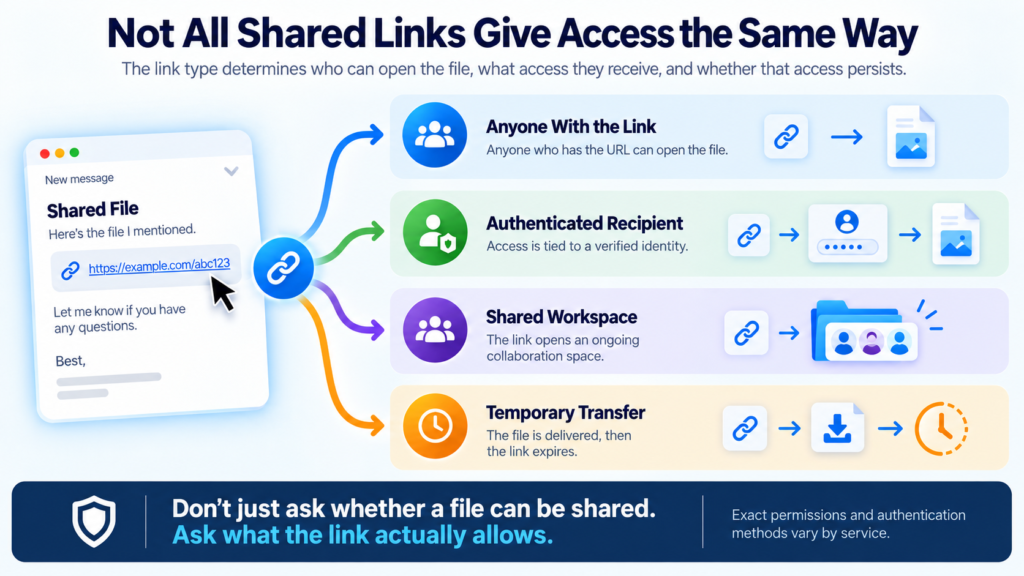
The Sharing Controls That Matter After You Send the Link
Many file-sharing features sound minor until a link is sent to the wrong person, forwarded unexpectedly, or left active for months.
Password Protection Adds a Second Requirement
A password means possession of the URL alone is not enough.
For stronger separation, send the password through a different communication channel from the link itself.
Sending both in the same email protects less effectively against someone who gains access to that message.
Expiration Prevents Forgotten Links From Living Forever
A shared link may only need to work for:
- one day
- one week
- the length of a project
- the duration of a client review
Automatic expiration removes access after that period without relying on someone remembering to return later and disable it manually.
View-Only and Download Restrictions Reduce What Recipients Can Do
Some files need to be seen without being distributed as downloadable originals.
Platforms such as Box and Sync.com can provide preview-oriented sharing where direct downloading is restricted.
This does not make copying impossible. A recipient can still photograph a screen, take screenshots where allowed, or manually reproduce information.
Download restrictions are an access control, not digital magic.
Revocation Gives the Sender a Way Back
A link that cannot be disabled creates a permanent loss of control.
Most serious sharing platforms allow the sender or administrator to revoke access by removing the link or changing permissions.
Revocation cannot retrieve copies that someone has already downloaded, but it can prevent future access through the original sharing path.
Activity Tracking Answers a Different Security Question
Permissions answer:
Who should be able to access this?
Activity records help answer:
Who actually did?
Download notifications, access logs, and recipient verification can matter when sending contracts, deliverables, financial documents, or other files where proof of access is useful.
Sending a File and Collaborating on a File Are Different Jobs
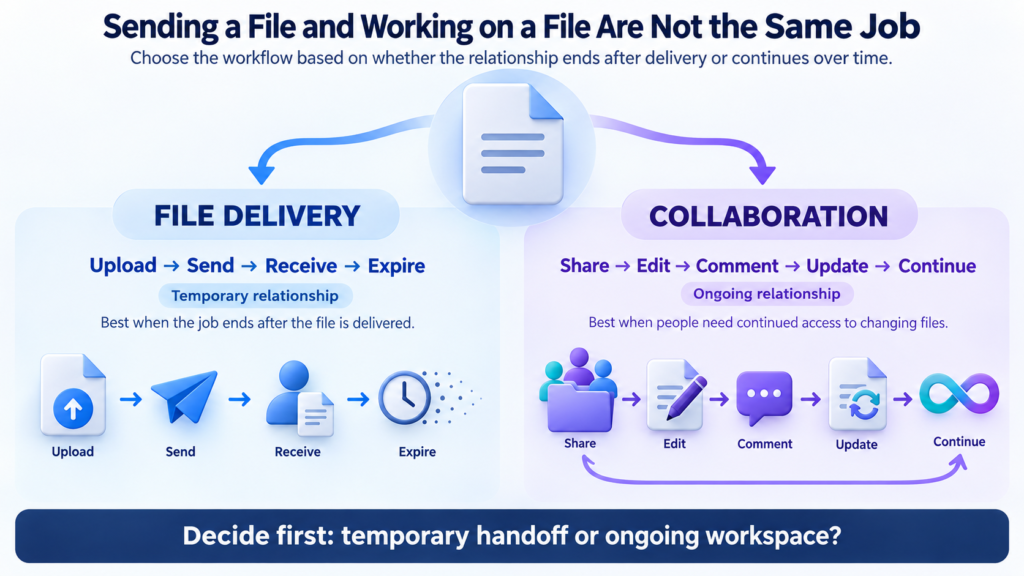
One of the easiest mistakes in this category is choosing a collaboration platform for a delivery problem or a transfer service for a collaboration problem.
File Delivery Has a Clear End Point
Suppose a video editor needs to send a 20 GB finished export to a client.
The desired workflow may be:
- Upload the file.
- Send access.
- Confirm the client received it.
- Let the transfer expire.
A temporary transfer model fits that job well.
There is little value in building a permanent shared workspace if no one plans to edit or revisit the project through that platform.
Collaboration Requires Continuity
Now imagine five people producing a quarterly report.
They need:
- shared folders
- changing versions
- comments
- editing
- continuing permissions
- access to future files
A short-lived transfer link would make that workflow unnecessarily awkward.
Google Drive, OneDrive, Dropbox, Box, or another persistent collaboration platform makes more sense.
How Secure Does a Shared File Need to Be?
Not every file deserves the same amount of friction.
A public media kit and a confidential financial statement should not necessarily use the same sharing workflow.
For ordinary files, an unrestricted but revocable link may be enough.
For more sensitive material, additional controls may include:
- recipient authentication
- password protection
- link expiration
- disabled downloads
- restricted forwarding
- activity logging
- end-to-end encrypted sharing
More security can make sharing harder.
Sync.com’s enhanced privacy option illustrates that tradeoff clearly. Adding end-to-end encryption to links can reduce media streaming, extended previews, editing, download acceleration, and compatibility in some circumstances.
The useful question is not: Which service has the most security features?
It is:
Which controls are justified by the sensitivity of this file?
How to Compare Cloud File Sharing Services
The service should fit the access relationship rather than forcing every recipient into the same workflow.
Start With the Recipient
Identify who normally receives your files.
That might be:
- coworkers
- clients
- customers
- contractors
- family members
- anonymous visitors
- job applicants
- vendors
Sharing with known coworkers is different from distributing files to people you may never interact with again.
Decide Whether Access Is Temporary or Ongoing
If the relationship ends after download, consider a transfer-oriented workflow.
If recipients need to return repeatedly, update files, or collaborate, persistent shared folders make more sense.
Define What Recipients Should Be Allowed to Do
Do they need to:
- view
- download
- comment
- edit
- upload
- reshare
Granting more access than necessary makes permissions harder to manage.
Decide Whether Identity Matters
For low-risk content, anyone-with-link sharing may be perfectly reasonable.
For sensitive information, choose a workflow that verifies recipients rather than relying only on possession of a URL.
Check Link Controls Before Comparing Storage Capacity
Look for the controls that match your risk:
- passwords
- expiration
- revocation
- view-only access
- download limits
- access logs
A large storage plan does not compensate for weak sharing controls when those controls are the reason you need the service.
Check the Limits Using the Files You Actually Send
File-size limits can vary by:
- plan
- upload method
- file-request feature
- browser
- account storage
- transfer type
If you routinely exchange 50 GB video projects, test the workflow around that size rather than assuming a service that accepts ordinary documents will scale comfortably.
Consider File Requests if You Regularly Collect Content
Receiving files can be as important as sending them.
Dropbox, Box, Sync.com, and WeTransfer all provide ways to request files without giving contributors broad access to the requester’s storage.
For agencies, accountants, recruiters, photographers, consultants, and other businesses that routinely collect client material, this can be more valuable than another terabyte of storage.
Conclusion
Cloud file sharing is not primarily a question of where a file sits online.
It is a question of who gets access, what that access allows, and how much control remains after the link is sent.
Dropbox keeps external sharing straightforward while adding useful controls and file requests. Google Drive is particularly strong when sharing turns into document collaboration. OneDrive connects file access closely to Microsoft 365 identities and administrative policy, while Box offers deeper business-oriented permissions and structured content collection.
Sync.com places more emphasis on privacy and granular link controls. WeTransfer solves a different problem by treating file sharing as temporary delivery rather than a permanent shared workspace.
The differences become easier to judge once the workflow is clear.
If someone only needs to receive a file once, optimize for delivery.
If several people need to keep working together, optimize for collaboration.
If the content is sensitive, start with identity, permissions, expiration, and revocation before worrying about which service offers the largest storage allowance.
Frequently Asked Questions
What Is Cloud File Sharing?
Cloud file sharing uses an online service to make stored or uploaded files available to other people.
Access may be provided through a public link, an invitation to a specific recipient, a shared folder, a collaborative workspace, or a temporary transfer.
The sender can often control whether recipients are allowed to view, download, comment on, edit, or upload files.
Can I Share Cloud Files With Someone Who Does Not Have an Account?
Yes, many services support this.
Dropbox and Box can provide links that work without recipient accounts. Google Drive and OneDrive can use broader link-sharing modes where permitted, while Sync.com and WeTransfer also support accountless recipient workflows.
More restrictive sharing modes may require authentication when the sender needs stronger identity verification.
What Is the Safest Way to Share a File Online?
There is no single safest method for every situation.
For sensitive files, a stronger workflow can combine recipient-specific access, authentication, an expiration date, limited permissions, and the ability to revoke access.
Password protection or end-to-end encrypted sharing may provide additional protection where appropriate.
Can I Stop Someone From Downloading a Shared File?
Some services can remove the normal download option and provide preview-only access.
Box and Sync.com, for example, support sharing modes that can restrict direct downloads in eligible configurations.
That does not make copying impossible. Someone who can view information may still be able to capture or reproduce it in other ways.
Can I Revoke a File-Sharing Link After Sending It?
Usually, yes.
Major cloud-sharing platforms generally let the owner disable or delete a shared link. Once revoked, future attempts to use that URL should stop working.
Revocation does not delete copies that recipients already downloaded.
What Is the Difference Between File Sharing and File Transfer?
File sharing often provides ongoing access to content stored in a cloud account.
File transfer is more commonly focused on delivering a file from one person to another, often through a temporary link that expires after a period of time.
Services such as WeTransfer lean toward delivery, while Google Drive, OneDrive, Dropbox, and Box are designed more around persistent storage and collaboration.
Can Someone Forward a Shared Link to Another Person?
Sometimes.
Anyone-with-link URLs can generally be forwarded because access depends on possession of the link.
Recipient-specific sharing can prevent that from granting access to someone else. Microsoft, for example, distinguishes transferable Anyone links from Specific people links that only work for designated recipients.
What Is the Best Way to Collect Files From Other People?
A file-request feature is often cleaner than giving contributors access to a shared folder.
Dropbox, Box, Sync.com, and WeTransfer can create upload or request workflows where outsiders submit files without being given normal access to the requester’s stored content.
The strongest option depends on required file sizes, whether submitters need to be identified, and whether additional information needs to be collected alongside the upload.
0 Comments