A small green checkmark next to a folder can make your files feel safer than they actually are. When your documents appear on both your laptop and phone, it is easy to assume they are protected if something goes wrong.
But having your files available on multiple devices is not the same as having a backup.
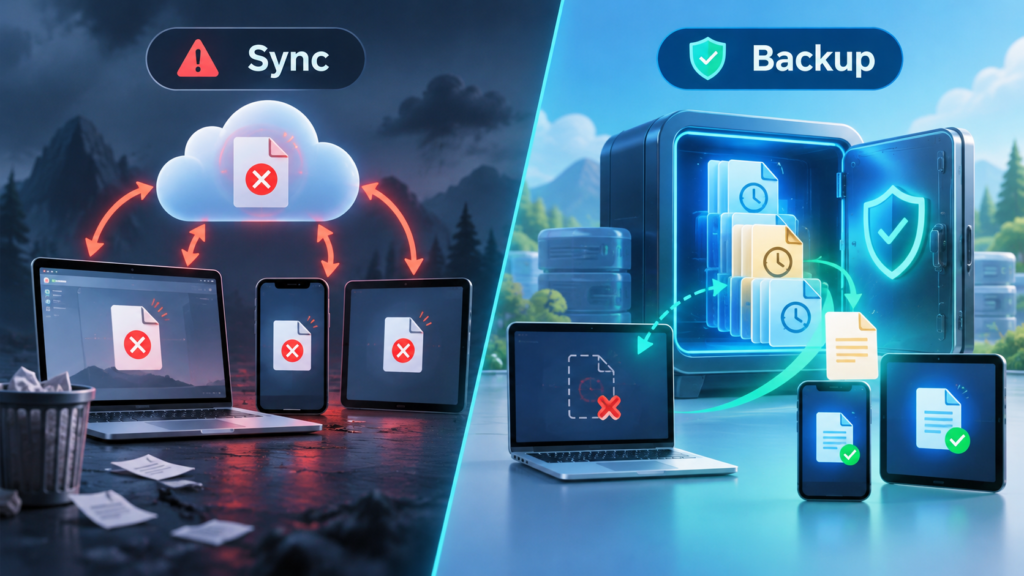
That distinction matters when you accidentally delete a folder, overwrite an important document, or discover that ransomware has damaged your files. Changes made through a synchronization service can spread to other connected devices, including changes you never intended to make.
File synchronization keeps your data consistent and accessible across devices. Backup preserves recoverable copies so you can retrieve files after they are lost, damaged, or changed.
Understanding how these systems work, where their protection overlaps, and where they differ can help you avoid losing personal photos, business documents, and other important files.
Key Takeaways
- Sync keeps files accessible, while backup focuses on recovery. Synchronization updates files across connected locations. Backup preserves separate copies that can be restored when the originals are lost or damaged.
- Accidental deletions can spread through synchronized folders. Removing a file from one connected device may also remove it from the cloud and other devices, although recovery features may allow you to retrieve it.
- Cloud storage can provide recovery without replacing an independent backup. Google Drive, OneDrive, Dropbox, and similar services offer trash folders or version history, but recovery depends on their retention policies and account settings.
- Ransomware can affect synchronized files and accessible backups. Historical versions, offline storage, and properly protected backup systems improve your ability to recover clean files.
- The 3-2-1 backup strategy reduces dependence on a single storage location. Keeping three copies of important data, using two storage media types, and maintaining one copy off-site helps protect against different types of failure.
Disclosure: This website contains affiliate links. I may earn a commission if you make a purchase through these links, at no additional cost to you.
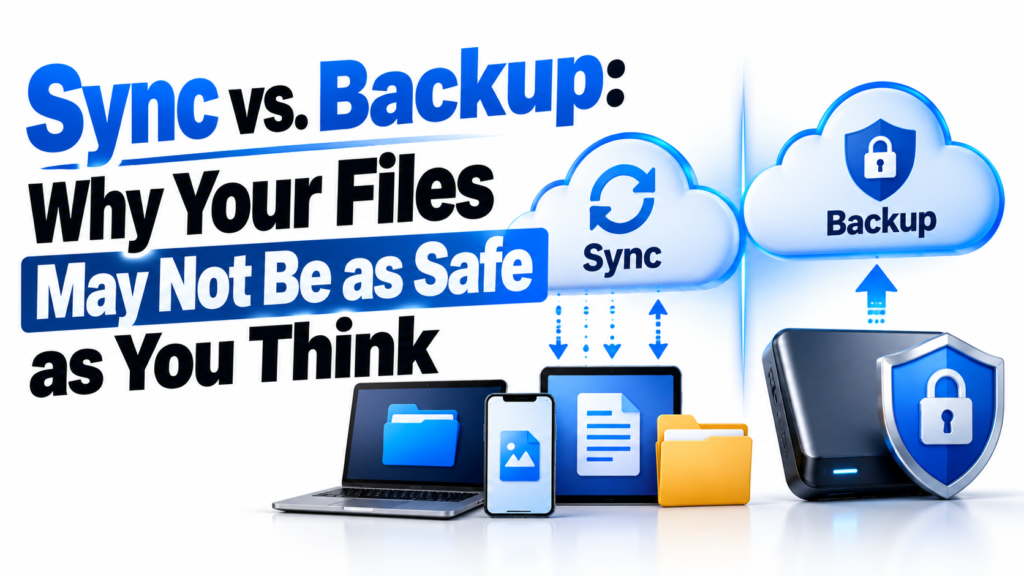
How File Sync and Backup Work Differently
The easiest way to understand synchronization is to picture a mirror.
When you stand in front of a mirror and comb your hair, the reflection follows your movements. If you spill ink across your shirt, the mirror immediately shows the stain.
File synchronization works in a similar way. When you edit, move, or delete a document in a synchronized folder, the service communicates that change to its connected locations.
This makes synchronization useful for everyday work. You can edit a document on your laptop, open the updated version on your phone, and share it with someone else without manually copying files between devices.
The limitation is that synchronization generally treats your changes as intentional, even when they are mistakes.
A backup serves a different purpose.
Think of taking a photograph of your room and storing it somewhere safe. If the room is damaged later, that earlier photograph still shows what it looked like before the damage.
A properly configured backup works on a similar principle. It retains recoverable copies or earlier versions of your files, separate from the normal synchronization process.
Unlike the mirror, the saved snapshot does not need to change every time the original changes.
Sync helps you work with the current version of a file. Backup helps you recover a previous or lost version.
Some cloud synchronization services also preserve older file versions. That provides useful recovery protection, but the available history and recovery options depend on the service and its settings.
Four Ways File Syncing Can Leave Your Data at Risk
Synchronization is not inherently unsafe. Problems arise when people depend on it as their only method of protecting important files.
Four situations illustrate why a separate recovery plan matters.
Accidental Deletions Can Spread Across Devices
Most consumer cloud storage applications support two-way synchronization.
Imagine you are clearing space on your laptop and delete a folder containing old family photographs. If that folder is synchronized with Google Drive, OneDrive, or Dropbox, the deletion may also be reflected in your cloud account.
Other connected devices can then receive the same change.
Instead of having several independent copies, you may discover that all your synchronized locations reflect the same deletion.
Fortunately, many services provide deleted-file recovery tools. You might be able to restore the folder from the cloud trash or recycle bin.
The problem is that this recovery opportunity does not necessarily last indefinitely.
An independent backup with suitable retention gives you another place to look when a deletion is discovered too late.
Ransomware and File Corruption Can Spread Through Sync
Ransomware is malicious software that can encrypt files, making them unreadable until a decryption key is obtained.
If ransomware modifies documents inside a synchronized folder, the synchronization software may upload those encrypted versions to the cloud.
Connected devices can then receive the damaged files.
The same general problem can occur without malware. A corrupted document or an accidental overwrite may become the latest synchronized version everywhere.
Some cloud services provide version history, ransomware recovery, or account rollback features. These can be valuable when the problem is detected within the available recovery window.
However, relying entirely on those features creates a dependency on one provider and its retention policies.
A separate backup that retains clean historical copies offers another recovery option. For stronger ransomware protection, backup copies should also be protected from unauthorized modification or deletion.
Cloud Trash and Version History Have Limits
Cloud storage providers often make deleted files recoverable for a limited period.
These periods are not identical across services, and trash retention should not be confused with every provider’s version-history or account-recovery capabilities.
For example:
- Google Drive: Files generally remain in Trash for 30 days before automatic deletion.
- Microsoft OneDrive: Deleted files are generally retained for 30 days in personal accounts and up to 93 days in work or school accounts, unless an administrator changes the policy.
- Dropbox: Standard file recovery periods vary by plan, commonly ranging from 30 to 365 days. Some plans or add-ons provide additional retention.
- Apple iCloud Drive: Deleted files can generally be recovered within 30 days, unless they have been permanently removed.
These periods matter when a missing file goes unnoticed.
Suppose you delete an old tax document in January and do not realize you need it until April. If its recovery period has expired, the cloud provider’s normal restoration tools may no longer help.
Some business accounts have additional administrative recovery capabilities, but those should be verified rather than assumed.
The relevant policies are described in the official documentation for Google Drive, Microsoft OneDrive, Dropbox, and Apple iCloud.
The important lesson is not that cloud storage lacks recovery features. It is that those features operate within specific limits.
Account Lockouts and Service Problems Can Interrupt Access
When all your files depend on one cloud service, access to that service becomes an important part of your data protection plan.
A compromised account, authentication problem, service outage, or account restriction can temporarily prevent you from reaching cloud-stored documents.
If files are stored locally on your computer, you may still have access to those copies. But files configured as cloud-only placeholders may require a working connection and account access before they can be opened.
This is another reason to maintain copies that do not depend on the same cloud account.
A local backup can help you recover files even when your synchronization account is unavailable. An additional off-site backup provides protection against physical damage or theft affecting your local equipment.
Disclosure: This website contains affiliate links. I may earn a commission if you make a purchase through these links, at no additional cost to you.
Sync vs Backup: Side-by-Side Comparison
The main difference between synchronization and backup is how each system handles changes and recovery.
| Feature | File Synchronization | Dedicated Backup |
| Primary purpose | Keep files accessible and consistent across connected locations | Preserve recoverable copies of important data |
| How changes work | Typically updates connected copies when files change | Creates or updates backup copies according to a schedule or policy |
| Accidental deletion | May remove the file from connected locations | Can retain deleted files according to its retention settings |
| Version history | Often available for a limited period | Depends on the backup method, settings, and available storage |
| Ransomware protection | May synchronize encrypted or damaged files | Can preserve clean versions if backup copies remain protected |
| Recovery scope | Primarily synchronized files and supported historical versions | May support file recovery or full-system recovery, depending on the product |
| Internet requirement | Internet usually needed to synchronize between devices | Local backups can operate without internet; cloud backups need connectivity |
| Main limitation | Connected copies can share the same mistakes | Recovery depends on backup coverage, integrity, retention, and accessibility |
A dedicated backup is not automatically immune to deletion, corruption, or malware. Its effectiveness depends on how copies are stored, protected, retained, and tested.
Another distinction is important: file backup and full-system backup are not identical.
A file-level backup restores documents, photographs, and other selected data. A full-system or disk-image backup may restore an operating system, applications, settings, and files as part of a broader recovery process.
Not every backup product provides both capabilities.
Where Popular Cloud Storage and Backup Tools Fit
Many software companies use the word “backup” to describe different forms of file protection.
The terminology can be confusing because some services combine synchronization, deleted-file recovery, version history, and other protection features.
Understanding what a tool actually does is more useful than relying on its label.
Cloud Synchronization Tools
Google Drive
Google Drive provides cloud file storage, sharing, collaboration, and synchronization through Google Drive for desktop.
It is useful when you need documents available across multiple devices or want to work with other people.
Google Drive also supports recovery features, including Trash and file version history. However, synchronized folders can still reflect deletions and other unwanted changes.
Microsoft OneDrive
OneDrive integrates with Windows and Microsoft 365, making it convenient to synchronize documents, photographs, and other files.
Its folder protection feature is commonly presented as “PC folder backup.” It uses OneDrive to protect and synchronize supported folders such as Desktop, Documents, and Pictures.
That can help when replacing a computer, but it is not the same as maintaining an independent, offline historical backup.
OneDrive also provides recycle bin and version recovery capabilities, so deleting a synchronized file does not necessarily mean it becomes immediately unrecoverable.
Microsoft explains the behavior in its OneDrive folder backup documentation.
Dropbox
Dropbox focuses on file synchronization, sharing, and collaboration across devices.
Its version history and deleted-file recovery features provide additional protection against mistakes. Supported plans also offer Dropbox Rewind for reversing larger groups of unwanted changes.
The amount of history available depends on the account plan and any additional retention features.
Apple iCloud Drive
iCloud Drive synchronizes supported files across Apple devices, including documents stored in iCloud Drive and, when enabled, Mac Desktop and Documents folders.
It is convenient for keeping files accessible across a Mac, iPhone, and iPad.
However, synchronized deletions can affect connected locations. iCloud’s recovery features provide a limited opportunity to retrieve eligible deleted files.
Apple’s iCloud Photos service also synchronizes photographs, but it should not be confused with iCloud Drive or a separate archival photo backup.
Dedicated Backup Tools
Apple Time Machine
Time Machine is built into macOS and can automatically back up files, applications, photographs, and other supported data to an external storage device or compatible network destination.
It maintains historical backups, allowing users to restore lost files or earlier versions.
Time Machine typically keeps hourly backups for the past day, daily backups for the past month, and weekly backups for earlier months, removing the oldest backups when storage becomes full.
It is particularly useful for local recovery, although restoring an entire Mac may also involve macOS Recovery or Migration Assistant.
Apple explains these capabilities in its Time Machine backup guide.
Windows File History
File History is a Windows feature designed to save recoverable versions of personal files to an external drive or supported network location.
It can help restore documents, photographs, and other files after accidental changes or deletion.
File History is different from the Windows Backup application.
Windows Backup uses OneDrive for supported folders and stores certain Windows settings and preferences through a Microsoft account. It is not a replacement for a dedicated full-system disk-image backup.
Microsoft describes the differences in its Windows backup and recovery documentation.
Backblaze Computer Backup
Backblaze Computer Backup is an online backup service designed to automatically protect supported user data files on a computer and selected external drives.
It can help recover files after accidental deletion, drive failure, or other data loss.
However, it does not provide a complete operating-system image. Operating system files, installed application files, and certain other items are excluded.
Backblaze includes a default 30-day file version history, with options for longer retention, including one-year and extended retention settings.
Its version history documentation explains how deleted and modified files are retained.
Carbonite Safe
Carbonite Safe provides automated cloud backup for supported personal files.
It is designed to help users recover documents, photos, and other eligible data after computer problems or file loss.
Like Backblaze Computer Backup, it is not a complete operating-system imaging solution. Carbonite Safe excludes system files, installed programs, and certain other file types.
Carbonite’s backup exclusions documentation explains which files are not covered.
External Hard Drives and Solid-State Drives
An external hard drive or SSD can provide a practical location for local backups.
However, simply connecting a drive to your computer does not automatically create a backup.
You must configure software or a reliable copying process to preserve the data you need.
For additional protection against ransomware, an external backup drive can be disconnected and stored safely when it is not being used.
A drive that remains connected and writable may still be vulnerable if malware compromises the computer.
The 3-2-1 Rule: Building a More Reliable Backup Strategy
You do not need to abandon cloud synchronization to protect your files.
Sync services make daily work convenient. The better approach is to combine that convenience with backup copies that provide independent recovery options.
One established starting point is the 3-2-1 backup rule.
1. Keep Three Copies of Important Data
Maintain your original working files and at least two additional copies.
If your primary computer fails or a file becomes damaged, you should have another recoverable copy available.
These copies should not all depend on the same synchronized account or device.
2. Use Two Different Storage Media Types
Avoid keeping all your copies on a single storage device or relying on only one storage medium.
For example, your working files might live on an internal SSD, with a local backup stored on an external hard drive.
Using separate devices and storage media helps reduce the risk that one hardware failure affects every copy.
The exact storage technologies matter less than avoiding a single point of failure, although using different media types remains part of the traditional 3-2-1 approach.
3. Keep at Least One Copy Off-Site
A local backup cannot protect you from every possible incident.
A fire, flood, theft, or another event affecting your home or office could damage both your computer and a nearby backup drive.
An independent cloud backup or securely stored backup at another physical location helps address that risk.
For stronger ransomware protection, consider keeping a backup copy offline or using appropriately secured storage that prevents unauthorized alteration or deletion.
The Cybersecurity and Infrastructure Security Agency’s ransomware guidance recommends maintaining offline, encrypted backups of critical data and regularly testing whether those backups can be restored.
How the 3-2-1 Rule Works in Practice
Consider someone who uses a laptop every day for work and personal files.
Their setup could look like this:
- Working copy: Documents, projects, and photographs stored on the computer, with selected files synchronized through OneDrive or Google Drive for everyday access.
- Local backup: Automatic backups of important files to an external hard drive, with the drive disconnected when practical.
- Off-site backup: A separate cloud backup service that retains recoverable versions of supported files.
In this arrangement, synchronization handles daily convenience while independent backups provide additional recovery options.
The strategy is not a guarantee against data loss. Its effectiveness still depends on selecting the right folders, using appropriate retention settings, securing the backups, and confirming that restoration works.
How to Check If Your Files Are Properly Backed Up
Before assuming your computer is backed up, review how your current setup handles deletions, historical versions, and recovery.
These five checks can help identify gaps.
1. Identify Which Folders Are Synchronized
Open the settings for Google Drive, OneDrive, Dropbox, iCloud Drive, or whichever cloud service you use.
Check which folders are being synchronized and whether important files exist locally or only as cloud-based placeholders.
If you want to understand how deletion synchronization works, create a disposable test file, confirm that it has synchronized, and delete it.
Then inspect the cloud service’s recovery options.
Do not experiment with irreplaceable files.
2. Check Your Cloud Recovery Settings
Sign in to your cloud storage account through a web browser.
Find the Trash, Recycle Bin, Deleted Files, or Version History section.
Confirm how long deleted files and previous versions remain available under your particular account or plan.
If longer retention is important, check whether your provider offers it and whether additional configuration is required.
3. Configure an Independent Backup
Choose a backup method that operates separately from your everyday file synchronization.
On a Mac, Time Machine can provide local historical backups. On Windows, File History can protect supported personal files.
A dedicated cloud backup service can add off-site protection.
Review which folders and file types each method includes or excludes. A backup that skips an important folder cannot restore its contents.
4. Protect Your Backup Copies
If you use an external backup drive, consider disconnecting it after completed backups when your workflow allows.
For cloud backup, review account security, access permissions, and available protection against unauthorized changes.
Use encryption where appropriate, and avoid relying on one account or device for every recoverable copy.
5. Test That You Can Restore a File
A successful backup notification does not prove that every important file can be restored.
Choose a non-sensitive test document that is included in your backup.
Use the backup software to recover an earlier copy to a separate location.
Open the recovered file and confirm that its contents are intact.
Repeat this test periodically, especially after changing devices, backup software, or storage settings.
A backup becomes useful when you can successfully recover the data you need from it.
Disclosure: This website contains affiliate links. I may earn a commission if you make a purchase through these links, at no additional cost to you.
Conclusion: Access Today, Recovery When It Matters
File synchronization and data backup solve different problems, and most people benefit from using both.
Synchronization makes it easier to work across devices, collaborate, and access current files. Backup preserves recoverable copies when the files you depend on are lost, damaged, or changed.
Cloud storage services can offer meaningful recovery features, including deleted-file restoration and version history. Those features are useful, but they should be understood in the context of their retention limits and account dependencies.
The stronger approach is to keep your everyday synchronization workflow while maintaining separate backups with appropriate coverage, retention, and protection.
You do not need the most complicated storage system. You need one that protects the files that matter, avoids unnecessary single points of failure, and gives you a practical way to restore your data when something goes wrong.
Frequently Asked Questions
Does the OneDrive “Backup” Feature Count as a Real Backup?
OneDrive’s folder backup feature synchronizes supported folders to Microsoft cloud storage. It can protect against certain problems, including the loss of a computer, and OneDrive offers deleted-file recovery and version history.
However, it is not equivalent to an independent, offline historical backup. Changes and deletions can synchronize across connected locations, and recovery remains subject to Microsoft’s retention and account policies.
For greater protection, combine OneDrive with a separate backup method.
Can Ransomware Damage Files Stored in Cloud Sync Folders?
Yes. If ransomware encrypts files inside a synchronized folder, those damaged versions may be uploaded to the cloud and distributed to other connected devices.
Some cloud providers offer version history or rollback tools that can help recover earlier versions.
Independent backups with protected historical copies provide another recovery option, especially when cloud recovery features are insufficient.
Do I Still Need an External Hard Drive if I Pay for Cloud Storage?
Not necessarily, but it depends on the type of cloud service and the protection you need.
A cloud synchronization subscription alone does not provide the same protection as a properly configured independent backup.
A dedicated cloud backup service can provide valuable off-site recovery without requiring an external drive. However, keeping an additional local backup may improve recovery speed, reduce dependence on internet access, and provide another layer of redundancy.
For important files, using both local and off-site backups is generally a stronger approach than relying on a single storage location.
0 Comments